

Merges
Excelwind supports merged cells directly on <Cell> through colSpan and rowSpan.
<Row>  <Cell value="Quarterly Sales Report 2024" colSpan={5} className="text-center font-bold" /></Row>
<Row>  <Cell value="Top Performers" rowSpan={2} className="align-center font-bold" />  <Cell value="North America" colSpan={2} />  <Cell value="570,000" colSpan={2} className="text-right" /></Row>
What merges are good for
- title rows that span an entire report
- multi-level headers
- dashboard cards and summary blocks
- vertically grouped labels such as categories or sections
How placement works
colSpanreserves cells to the right of the current cellrowSpanreserves the same columns on following rows- later cells in the same row are placed into the next free column automatically
- covered cells should not be authored explicitly; Excelwind skips over them during render
Style tips
- apply borders intentionally on merged layouts if you want a visible grid structure
- use
align-centeroralign-middleon merged headers so text stays visually centered - prefer row-level or group-level
classNamewhen several merged cells share the same look
See it in practice
Report-style merges
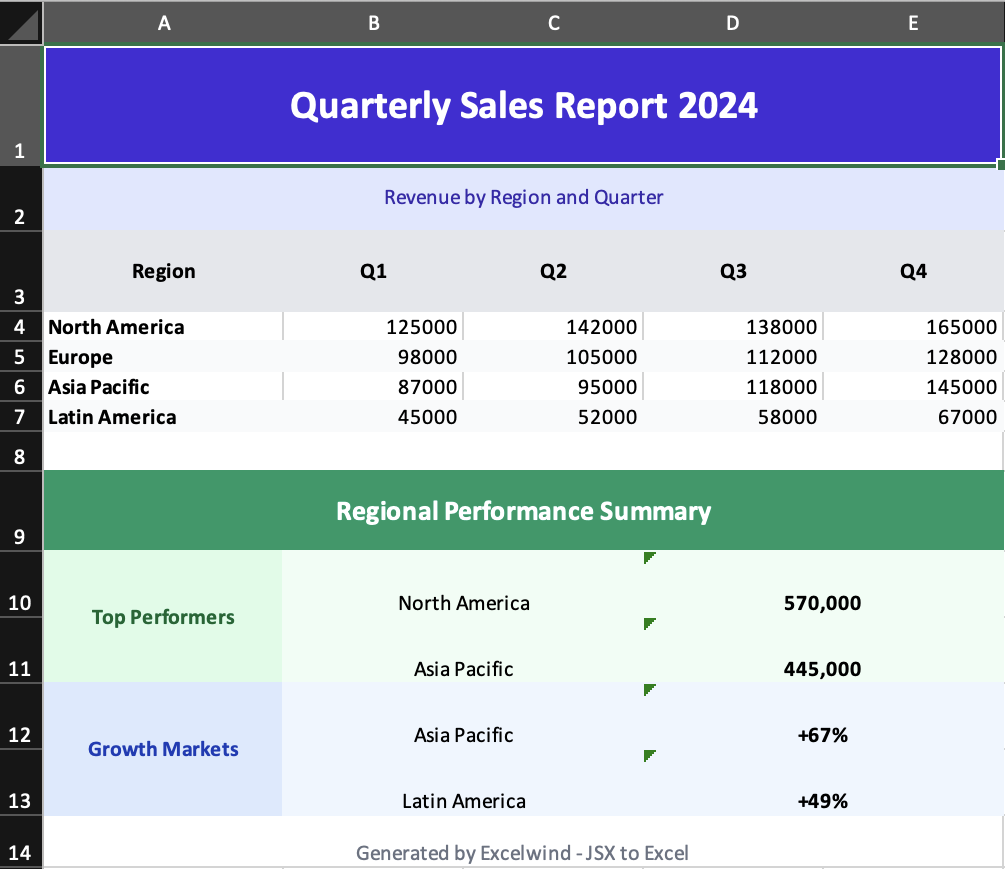
- Source:
examples/05-merged-cells.tsx - Shows title rows, vertically merged category labels, and summary blocks
Complex merge stress test
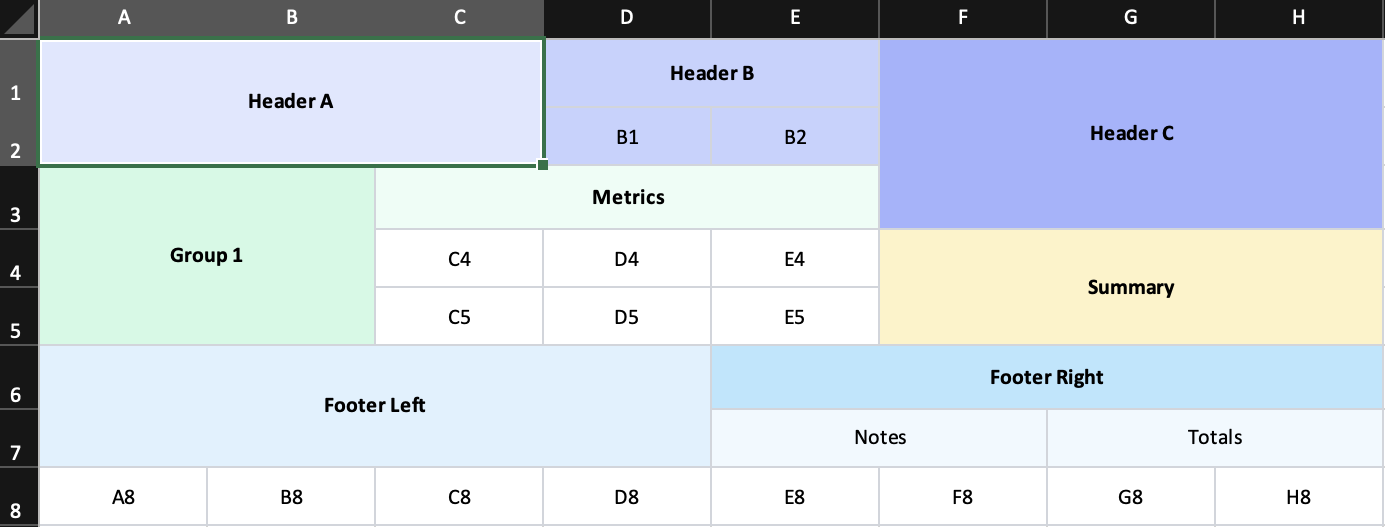
- Source:
examples/08-complex-merge.tsx - Shows mixed row and column spans colliding in one layout